Photo Collage Maker & Editor
- 4.7
- Rating
- 10.00M
- Installs
- Free
- Price

 Analysis by App-foxy
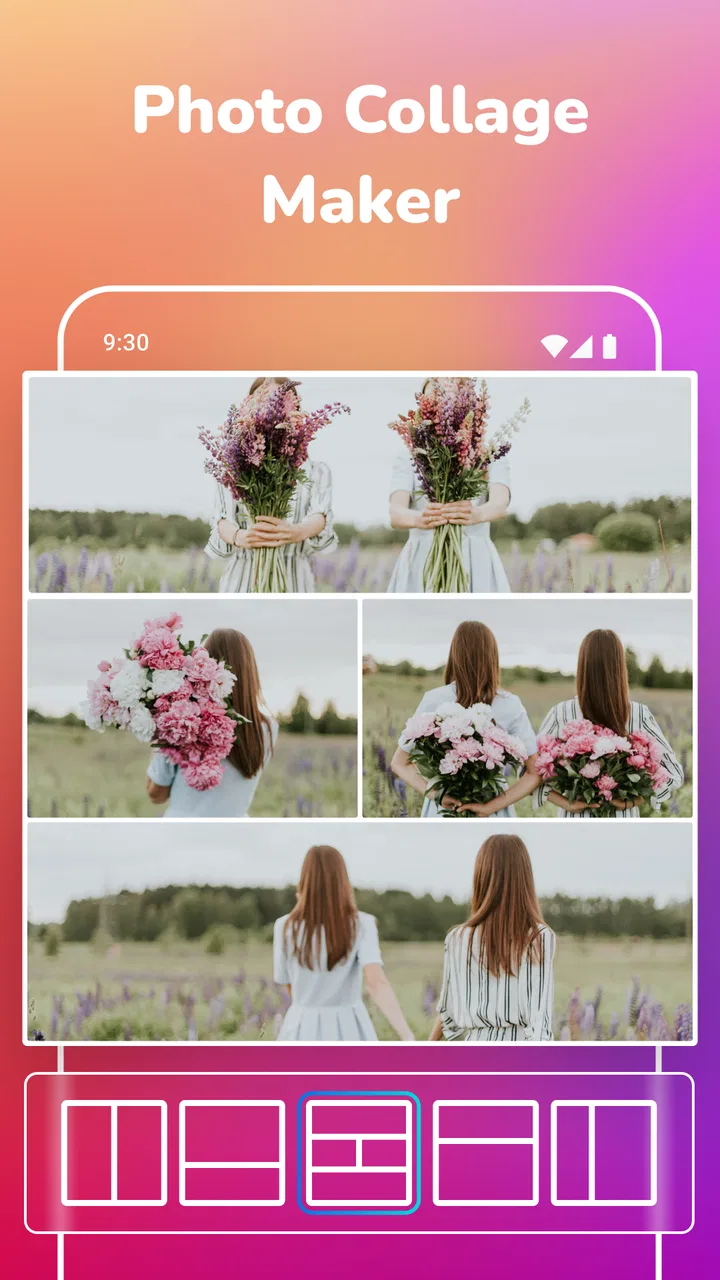
I spent time with Photo Collage Maker & Editor as a practical photography app rather than treating it like a quick novelty tool. Its purpose is straightforward: bring several pictures together, arrange them in a frame, and produce something that feels ready to share. That simplicity is the main reason it works. I do not have to learn a complicated editing system before making a birthday collage, a travel recap, or a small collection of product photos.
Developed by TarrySoft, the app is free to install and aimed at Everyone. It belongs to the photography category, although I would describe its real role more narrowly: it is a focused collage builder with editing tools, not a complete replacement for a full photo editor. The current version is 3.18.7, and it runs on Android 8.0 or later. That makes it accessible on many older phones as well as newer devices.
The app has built a substantial audience, with over 10 million installs and a 4.7 average from around 153 thousand ratings. Those figures suggest that its focused approach suits a lot of people. After using it, I can understand why: the learning curve is gentle, the basic result arrives quickly, and there is enough control to stop a collage from looking completely automatic.
You May Also Like

 Google Keep - Notes and lists
Google Keep’s Quiet Growth Shows the Appeal of Simpler Notes
As mobile work gets busier, Google Keep keeps winning a simple contest: capture a thought quickly, find it later, and get on with the day.

 Blood Strike: 2.5 Anniversary
Blood Strike’s Loadouts Turn Every Drop Into a Tactical Gamble
A close look at Blood Strike’s custom loadouts: how fast access to signature weapons reshapes its battle royale rhythm, rewards preparation, and narrows the gap between fights.

 Pandora - Music & Podcasts
Pandora’s Music Is Easy to Start, but Harder to Recover
Pandora’s strength is its low-effort path from a seed to a station. Its weak spot is how much confidence it asks you to place in connection, setup, and quiet recovery.

 8 Ball Pool
 Is Built on Rivalries, Rematches, and Routine
A close look at the rivalries, rematches, shared routines, and unanswered safety questions that turn a quick pool match into a persistent mobile community.

 Samsung Music
’s Quiet Strength Is Playing What You Already Own
Its reach comes less from spectacle than from dependable access to a personal library. That simplicity is both the app’s strongest retention engine and its ceiling.

 AccuWeather: Weather Radar
AccuWeather Review: A Quick, Clear Forecast for Everyday Decisions
For everyday plans, the best forecast is the one you can understand quickly. AccuWeather makes rain timing, radar, and local conditions easy to act on, with a few trade-offs.
More From Our News Desk



How I build a collage from start to finish
My usual workflow begins with a clear purpose instead of selecting photos at random. For a family moment, I choose images that tell a small story: an opening picture, a few details, and a final image. For a social post, I usually reduce the selection and keep the most visually different shots. This matters because a collage can become crowded long before the app itself becomes difficult to use.
After selecting the pictures, I look at the arrangement before doing any decoration. A layout that looks fine with square images may crop faces when the source photos are tall or wide. I check every cell, especially the first and last images, because those often receive the most attention. If a face is cut off, I would rather change the layout than force the photo into an awkward crop.
The next step is adjusting the individual images. I treat the collage as a group of small compositions, not one flat picture. A close-up usually needs different positioning from a landscape shot. Moving the crop so that the important subject sits inside the visible area is one of the most useful habits I developed with this app. It takes a few extra seconds, but it makes the finished result look deliberately assembled.
Once the images are positioned, I work on spacing and borders. Small gaps can help separate similar pictures, while wide borders can make a simple arrangement feel more like a printed card. I avoid making every edge dramatic. In my experience, a restrained frame keeps attention on the photos, particularly when the images already contain bright colors or busy backgrounds.
Only after the structure is settled do I consider text, stickers, or other decorative touches available in the editing experience. This order prevents a common mistake: spending time styling a collage and then changing the layout, which forces the decorative elements to be reconsidered. I save the visual hierarchy first and decorate second.
For a realistic everyday example, imagine returning from a weekend trip with several similar phone photos. I would choose one wider scene, two people-focused pictures, and one detail such as food, a ticket, or a street sign. I would use a layout that gives the wider scene more breathing room, then position the smaller images so faces are not pressed against the borders. The result communicates the trip more effectively than a grid of nearly identical snapshots.
Choosing photos that work together
The strongest improvement is often made before opening the editor. I look for differences in distance, direction, and subject. Five portraits with the same pose rarely make an interesting collage, even if the frame is attractive. A mixture of one establishing image, a medium shot, and a detail gives the viewer somewhere to look.
I also pay attention to brightness. If one photo is taken indoors and another in strong sunlight, the collage may feel uneven. The app can help arrange and present the images, but it cannot turn unrelated lighting into a naturally consistent set. When I have a choice, I select photos with similar exposure and color mood, then use the layout to create contrast through size rather than through wildly different visual conditions.
Another useful habit is keeping a spare version of the original selection mentally separate from the final design. I sometimes remove a picture that technically fits but weakens the overall rhythm. A smaller collage with four strong images is usually more convincing than a crowded one containing every moment.
Settings that deserve a deliberate check
The most important settings are the ones that affect balance: layout, spacing, border treatment, and the way each image sits inside its frame. I do not choose a template simply because it contains the right number of spaces. I test whether the proportions suit the photos I actually selected.
Spacing has a surprisingly large effect. Narrow gaps create a compact, almost contact-sheet appearance. Wider gaps make each image feel more independent and can help when the pictures have different colors. I use less spacing when the photos belong to one continuous scene and more when they represent separate people or events.
Border color is another setting worth checking before export. A neutral border is safer for mixed collections, while a stronger color can work when the photos share a clear theme. I avoid choosing a border that competes with skin tones or important objects. The correct choice is not the most noticeable one; it is the one that makes the edges feel intentional.
When text is part of the design, I keep it short. A date, place, or brief greeting can add context, but a full sentence across a small collage often becomes difficult to read. I place wording where it does not cover faces or the main subject. This is especially important when the collage will be viewed on a phone, where small decorative text can disappear into the image.
I also check the final composition at a reduced size before considering it finished. A design that looks balanced while editing may lose its hierarchy when displayed as a small social thumbnail. I look for the first thing my eye notices. If it is a border, a sticker, or a block of text instead of the best photo, I simplify the design.
The app is free, but it includes in-app purchases ranging from $0.99 to $99.99 per item. I would begin with the free experience and decide whether the available tools cover my needs before paying for extras. That approach is sensible for occasional users, because the basic appeal is quick collage creation rather than a professional production workflow.
Repeatable patterns that make the app faster
Experienced use is less about discovering a secret button and more about repeating a reliable order of decisions. My pattern is selection, layout, crop, spacing, decoration, and final inspection. Following that sequence keeps me from polishing the wrong arrangement and makes a small project feel much quicker.
I also create a rough version first. Instead of trying to make the first arrangement perfect, I place the images, identify the weakest cell, and adjust from there. This is faster than staring at the empty canvas and trying to predict the ideal design. The first draft reveals whether the photos belong together at all.
For recurring projects, I keep the visual language consistent. If I am making a series of monthly family collages, I use similar spacing and border choices so the results feel related. I may change the number of photos or the dominant image, but a consistent structure makes the collection easier to recognize.
A useful shortcut in judgment is to decide what the collage is supposed to do. A memory collage can be warm and slightly busy. A marketplace image needs clearer product visibility. A birthday greeting can tolerate more decoration. The same layout is not equally suitable for all three purposes, so I choose settings based on the audience rather than on whatever looks most elaborate.
I am careful with duplicate subjects. If two images show the same person from almost the same angle, I usually keep only the sharper one. This is a small decision, but it gives the remaining photos more room and prevents the collage from feeling like a camera roll pasted into a frame.
Another repeatable habit is checking the edges before saving. Important details near the outside of a photo are the first to be lost when a crop is applied. I inspect hands, faces, signs, and product labels in particular. This is a practical step that a generic collage tutorial often skips, yet it prevents the most visible mistakes.
Where the editor is useful, and where it reaches its limits
Photo Collage Maker & Editor is strongest when the desired outcome is a finished arrangement rather than a deeply retouched photograph. It gives me a direct path from a group of images to a shareable composition. For invitations, simple announcements, travel summaries, classroom memories, and casual social posts, that focus is an advantage.
It is less suitable when I need detailed layer management, precise color correction, advanced masking, or a carefully controlled print layout. A dedicated photo editor is a better choice for removing objects, correcting difficult lighting, or making one image look polished on its own. A design application is more appropriate when typography, alignment, and brand consistency matter as much as the photos.
This distinction is important because the app can make a collage look organized, but it does not automatically solve weak source material. Blurry pictures remain blurry, poorly lit photos remain difficult to combine, and a crowded selection still produces a crowded result. I see the editor as a strong presentation tool, not a substitute for choosing good images.
There is also a trade-off between speed and control. The focused interface helps me finish a basic design without a long setup, but users who want to adjust every visual detail may eventually find it restrictive. That is not a flaw for its intended audience; it is simply the cost of keeping the workflow approachable.
People who dislike editing apps because they feel complicated will probably appreciate this balance. On the other hand, someone who already works comfortably in a full creative suite may find the experience too limited for demanding projects. I would not choose it for a professional campaign where every output must follow exact specifications.
Privacy-conscious users should still apply ordinary care when selecting images. I avoid importing sensitive documents, private identification, or pictures that I would not want included in a saved design. That is good practice with any photo tool, especially when the finished image is intended for sharing.
What I would tell a friend before installing it
I would recommend it to someone who wants a free, approachable way to combine photos without learning a large editing system. Its 4.7 average and broad install base match my impression that it handles its central task well. TarrySoft has kept the concept clear: choose images, arrange them, refine the presentation, and save something usable.
I would first ask that friend what kind of result they expect. If they want a quick birthday collage, a visual recap of a trip, or a neat group of product shots, this app is a sensible starting point. If they need professional retouching, exact print preparation, or complex typography, I would point them toward a more specialized alternative instead.
The age rating of Everyone also fits the straightforward nature of the tool. It is easy to imagine it being used by families, students, casual creators, or anyone preparing a simple image for friends. The important limitation is not the audience; it is the level of creative control. Beginners gain speed, while advanced editors may miss deeper options.
My best advice is to spend more time selecting and cropping than decorating. The app can make a weak collection look tidy, but thoughtful photo choices make it look good. Use spacing to separate ideas, keep text brief, inspect every face near a crop, and judge the final image at the size where people will actually see it.
Overall, I found Photo Collage Maker & Editor most convincing as a dependable everyday collage tool. It does not need to become an all-purpose image studio to be useful. Its value comes from reducing the distance between a handful of photos and a presentable final composition.
For me, the final verdict is simple: choose it when speed, clarity, and easy photo arrangement matter more than deep editing control. Start with the free version, build a few collages using a consistent workflow, and see whether its available settings match your habits. If they do, it is an easy app to keep around for the moments when several good photos deserve to become one shareable image.
FAQs for Photo Collage Maker & Editor
01What is Photo Collage Maker & Editor used for?
Photo Collage Maker & Editor is designed for combining multiple images into a single creative composition. During testing, the app provided collage templates, adjustable grids, borders, backgrounds, text tools, stickers, filters, and basic editing controls. It can be useful for creating social media posts, travel memories, birthday greetings, photo albums, and simple promotional graphics without requiring advanced design experience.
02Is Photo Collage Maker & Editor easy to use for beginners?
Yes, the app is generally straightforward for beginners. After selecting a layout or template, you can add photos from your device, reposition them, zoom or crop individual images, and adjust the overall design. Most tools are clearly presented, so users can create a collage quickly. However, some advanced customization options may require exploring the menus before they become familiar.
03Does Photo Collage Maker & Editor include editing tools besides collage layouts?
Besides collage creation, the app typically includes several useful photo-editing features, such as cropping, rotation, brightness adjustments, contrast controls, filters, frames, stickers, and text overlays. These tools make it possible to finish a design inside the same application instead of switching to another editor. The available options may vary depending on the app version and device platform.
04Can I save and share collages created with the app?
Yes, completed collages can generally be saved to the device and shared through common services such as messaging apps, email, and social media platforms. Before exporting, it is worth checking the selected image quality and file format, especially if you plan to print the result. Some free versions may include advertising, watermarks, or export limitations depending on the feature being used.
05Is Photo Collage Maker & Editor free to download and use?
Photo Collage Maker & Editor may be available as a free download, but users should review the in-app purchase information before installing it. The basic tools and selected layouts are often accessible without payment, while premium templates, effects, stickers, or an ad-free experience may require a subscription or one-time purchase. Availability of features can differ between Android and iOS versions.
Pros
- Offers many collage layouts for different photo combinations.
- Includes filters
- stickers
- frames
- and text customization tools.
- Simple interface makes basic edits easy for beginners.
- Supports quick sharing to social media and messaging apps.
- Useful for creating themed posts
- cards
- and photo memories.
Cons
- Some advanced effects and design elements require in-app purchases.
- Ads may interrupt editing
- especially in the free version.
- Export quality can vary depending on the selected layout and settings.
- Large projects may use considerable storage and device memory.
- Limited control over precise image positioning in certain templates.

Photo Collage Maker & Editor
Gallery